
- Civilization
- Greek
- Level
- 40
This is a guide on how to install the custom character files in this resource section.
If you don't know what custom characters are, they are basically your individual civs in offline mode. If you were to load into the online game and select your civ, you are basically selecting a custom character with data loaded on into it.
First and foremost you must locate the install path of your files. This can be in one of two places depending if you installed via steam or the project celeste website. Please find the guide appropriate to you below.
STEAM INSTALLATIONS
If you have installed via steam, then your install path will likely look like:
C:\Program Files (x86)\Steam\steamapps\common\Age Of Empires Online
PROJECT CELESTE WEBSITE INSTALLATIONS
The guide works the same for the project celeste installation, but you need to navigate to the same 'Age Of Empires Online' Path that contains the 'DATA' folder, note not 'Data' that's lowercase, this is the wrong folder. The correct folder is in all caps, and should be found in: C:\Users\User\AppData\Roaming\ProjectCeleste
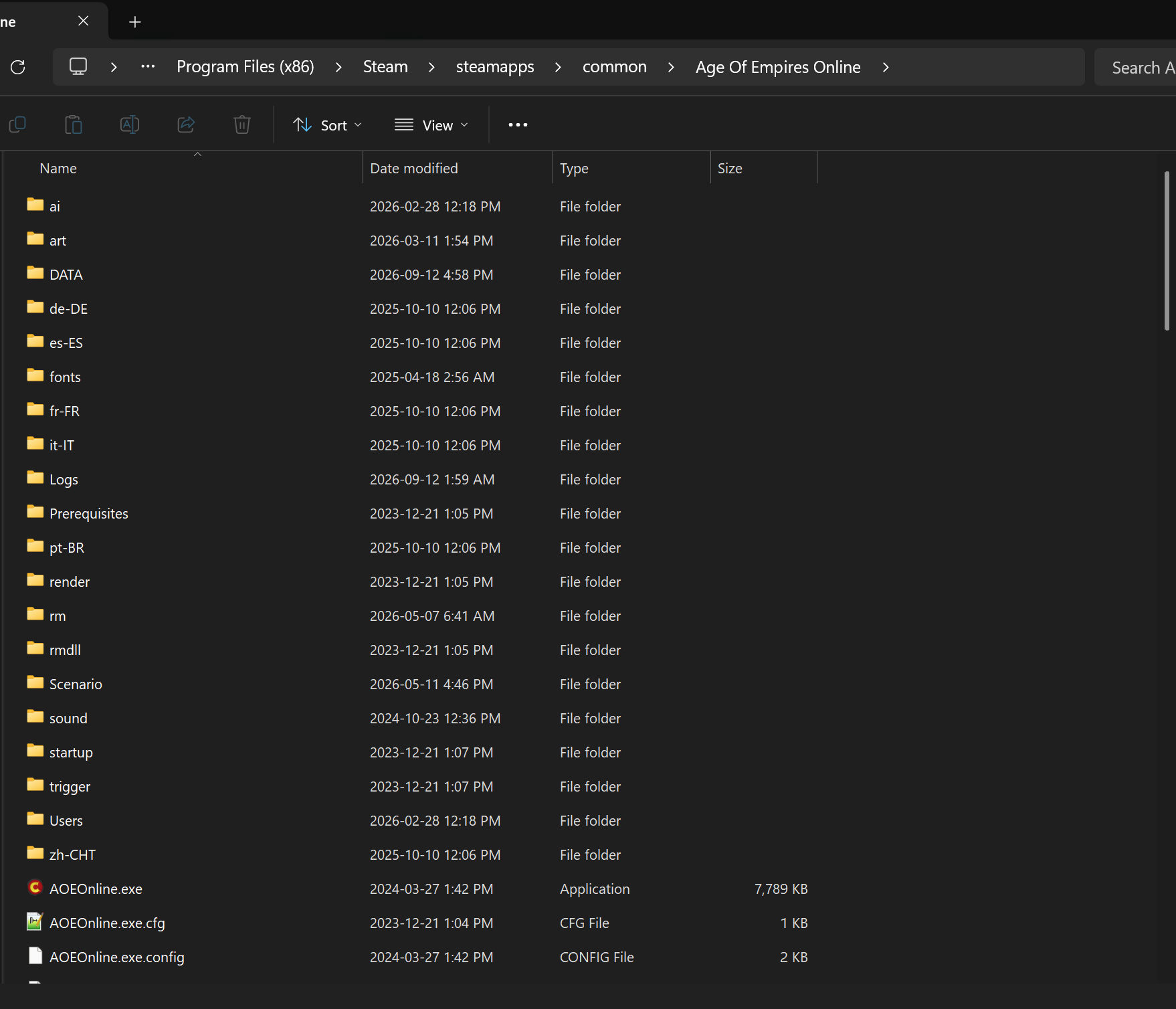
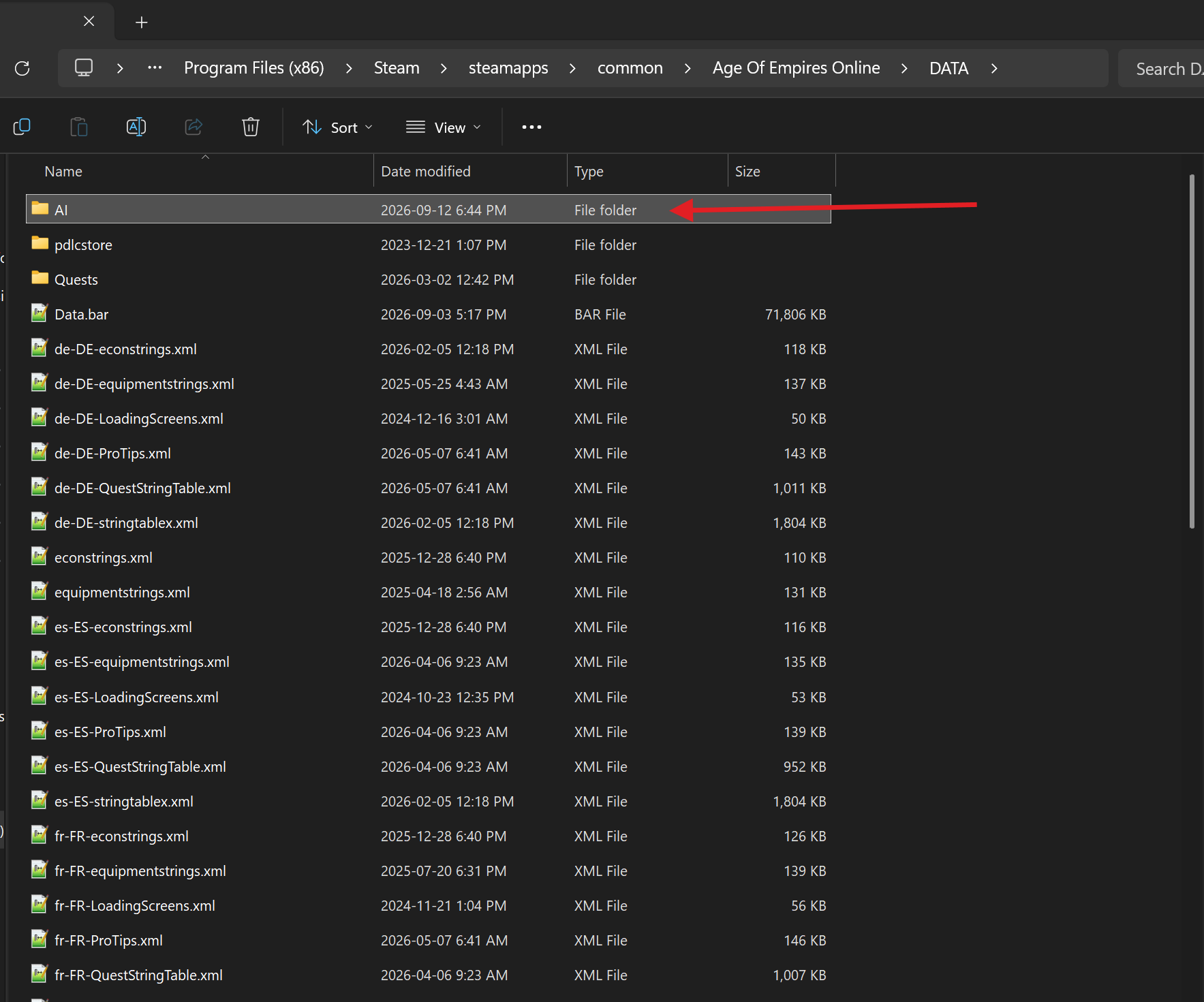
Then navigate to the folder called 'DATA',
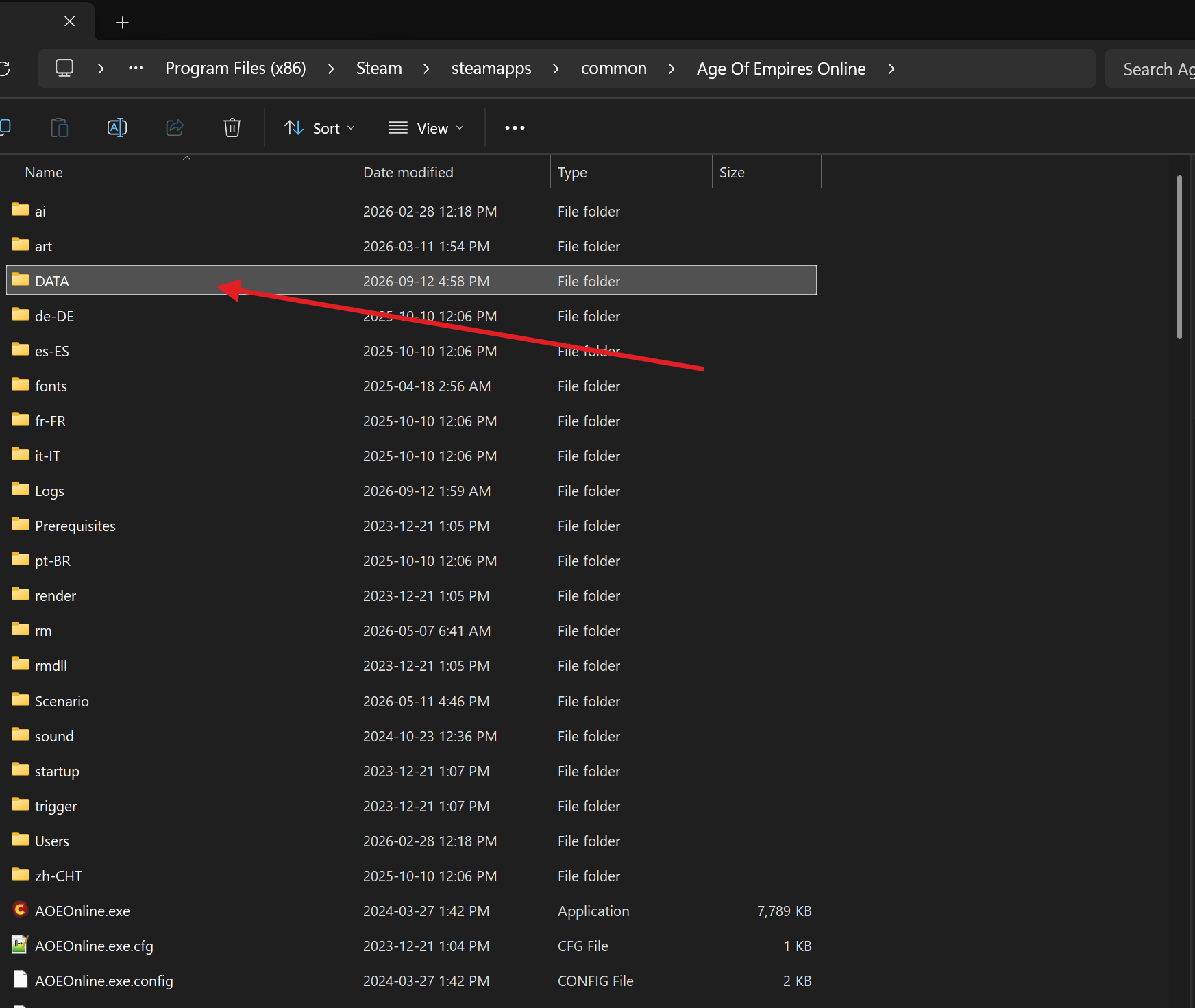
then find the folder called 'AI'. If this does not exist, then you will have to create it.
In that folder, drag and drop your .character file. I have a .zip file attached to this guide with all my custom character files that you can install with this guide.
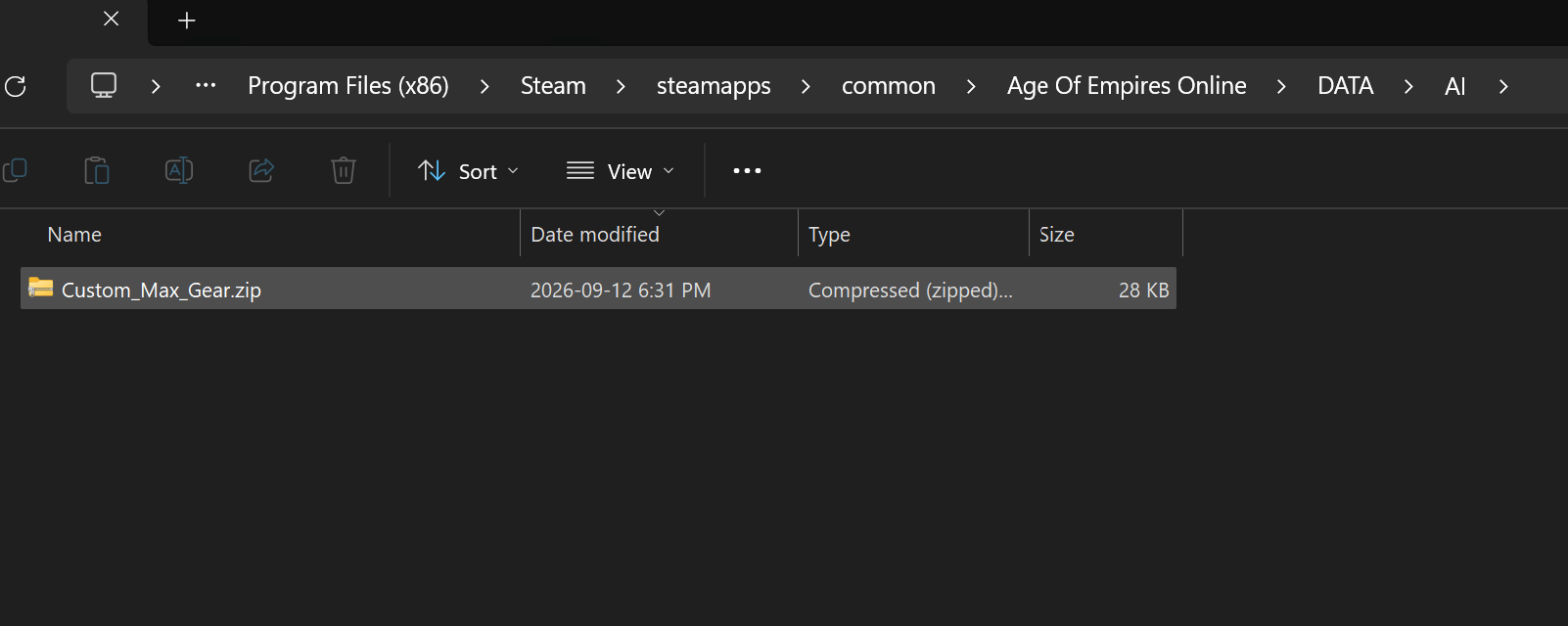
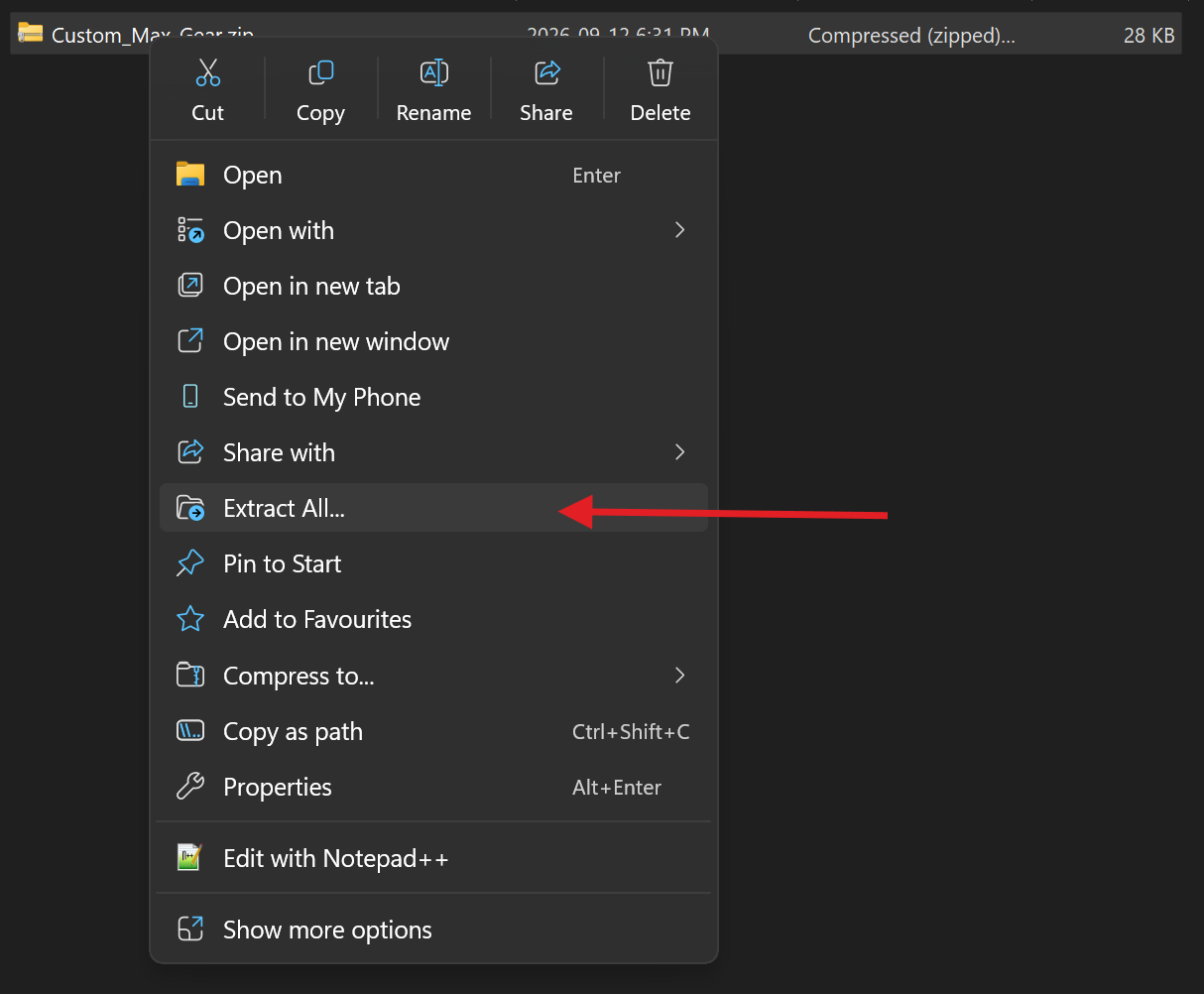
Then make sure to copy the .character files from inside the 'Custom_Max_Gear' folder into the AI folder.
If you don't know what custom characters are, they are basically your individual civs in offline mode. If you were to load into the online game and select your civ, you are basically selecting a custom character with data loaded on into it.
First and foremost you must locate the install path of your files. This can be in one of two places depending if you installed via steam or the project celeste website. Please find the guide appropriate to you below.
STEAM INSTALLATIONS
If you have installed via steam, then your install path will likely look like:
C:\Program Files (x86)\Steam\steamapps\common\Age Of Empires Online
PROJECT CELESTE WEBSITE INSTALLATIONS
The guide works the same for the project celeste installation, but you need to navigate to the same 'Age Of Empires Online' Path that contains the 'DATA' folder, note not 'Data' that's lowercase, this is the wrong folder. The correct folder is in all caps, and should be found in: C:\Users\User\AppData\Roaming\ProjectCeleste
Then navigate to the folder called 'DATA',
then find the folder called 'AI'. If this does not exist, then you will have to create it.
In that folder, drag and drop your .character file. I have a .zip file attached to this guide with all my custom character files that you can install with this guide.
Then make sure to copy the .character files from inside the 'Custom_Max_Gear' folder into the AI folder.